> For the complete documentation index, see [llms.txt](https://docs.magecomp.com/llms.txt). Markdown versions of documentation pages are available by appending `.md` to page URLs; this page is available as [Markdown](https://docs.magecomp.com/magento-2-instagram-feed-widget-pro/image-and-hotspot-configuration.md).
# Image and Hotspot Configuration
When you click on the edit image button, you will be asked to configure the various image and Hotspot information such as link URL, title, description, product ID.
Enter the eye-catching title for the image. Drag and drop the pins on the product in the images to set the position of the Hotspot.
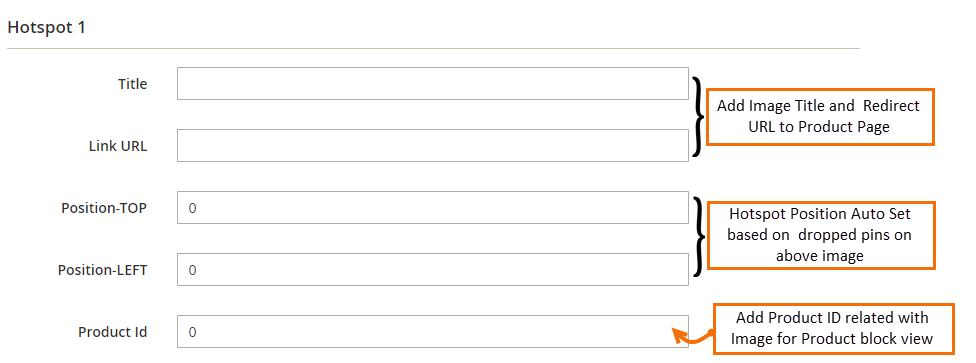
Once the image info is configured, below you will find settings for Hotspot. Add the title and link URL for the Hotspot. The position of Hotspot will automatically set when you drag and drop the pins. Enter the product ID related to image for product block view.

 Once the image info is configured, below you will find settings for Hotspot. Add the title and link URL for the Hotspot. The position of Hotspot will automatically set when you drag and drop the pins. Enter the product ID related to image for product block view.