> For the complete documentation index, see [llms.txt](https://docs.magecomp.com/llms.txt). Markdown versions of documentation pages are available by appending `.md` to page URLs; this page is available as [Markdown](https://docs.magecomp.com/magento-2-multivendor-whatsapp-contact-pro-extension/configuration-for-admin.md).
# Configuration for Admin
Once you have successfully installed the extension, go to **Store → Configuration** to configure the extension for use.
* **Whatsapp Contact Pro:** Option to enable or disable the extension.
* **Enable only in Mobile:** Set this as Yes to show Whatsapp contact icon only in Mobile phones.
* **Support Type:** Option to enable single or multiple operators.
* **Whatsapp Number:** Add your Whatsapp number here.
* **Default Whatsapp Notification and Help Message:** Here you can set frontend popup notification title text, help message and default Whatsapp push message for single operator.
* **Operator Image:** Upload Whatsapp operator image from here.
**Frontend Settings:**
* **Button Color:** Pick frontend Whatsapp icon background color.
* **Icon Color:** Pick frontend Whatsapp icon color.
* **Position:** Select the frontend Whatsapp icon position.
* **Bottom Position:** Option to set margin for Whatsapp icon in frontend.
* **Button Animation Effect**: Select animation for Whatsapp icon.
**Set Whatsapp Operators:**
You can add multiple Whatsapp operators in the backend grid and also can manage that too.
**Edit Whatsapp Operator:**
* **Status:** Option to enable or disable Whatsapp operator.
* **Department Name:** Option to set the department name for the operator.
* **Operator Name:** Set Whatsapp operator name.
* **Whatsapp Number:** Enter operator Whatsapp number.
* **Default Message:** Enter Whatsapp message to display in the frontend.
* **Image:** Option to set the Whatsapp operator profile picture.
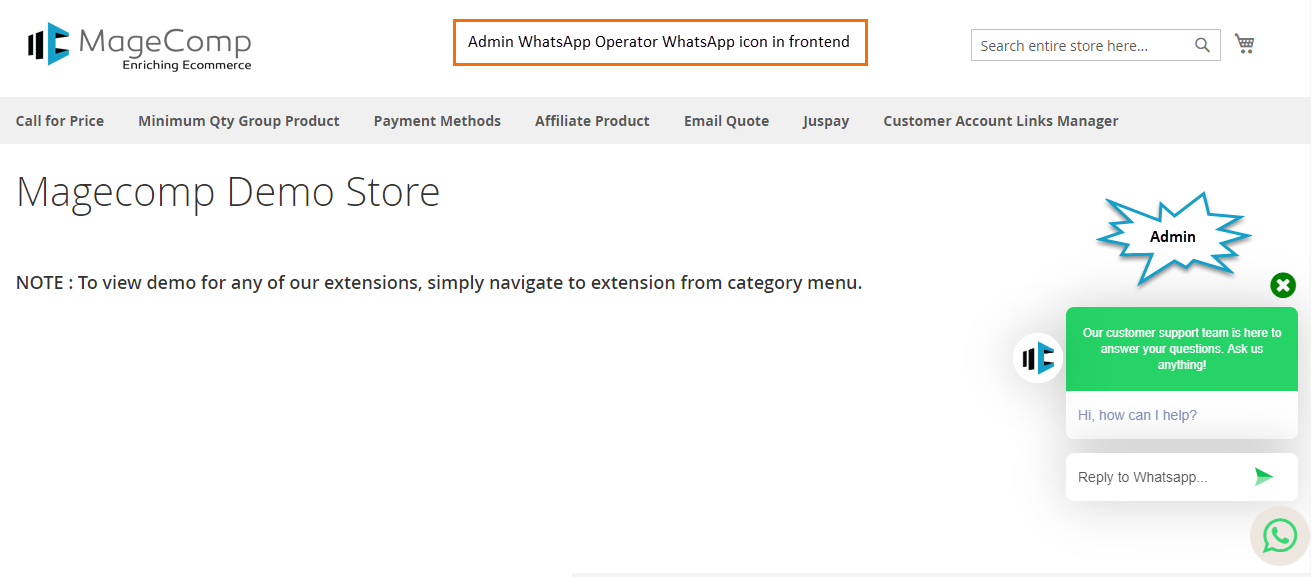
Whatsapp icon of admin Whatsapp operator in the frontend.
Whatsapp icon of Multiple Whatsapp operators in the frontend.