> For the complete documentation index, see [llms.txt](https://docs.magecomp.com/llms.txt). Markdown versions of documentation pages are available by appending `.md` to page URLs; this page is available as [Markdown](https://docs.magecomp.com/magento-2-abandoned-cart-email-extension/configuration.md).
# Configuration
**Note:**\
**If you don’t want all SMS addons to be installed, you can go for any one SMS addon installation.**
For example,
Magecomp\_Mobileloginmsg91
* **SMS Addons are already added to our standard extension package.**
* **One SMS Addon is required to get a dropdown in SMS API configuration.**
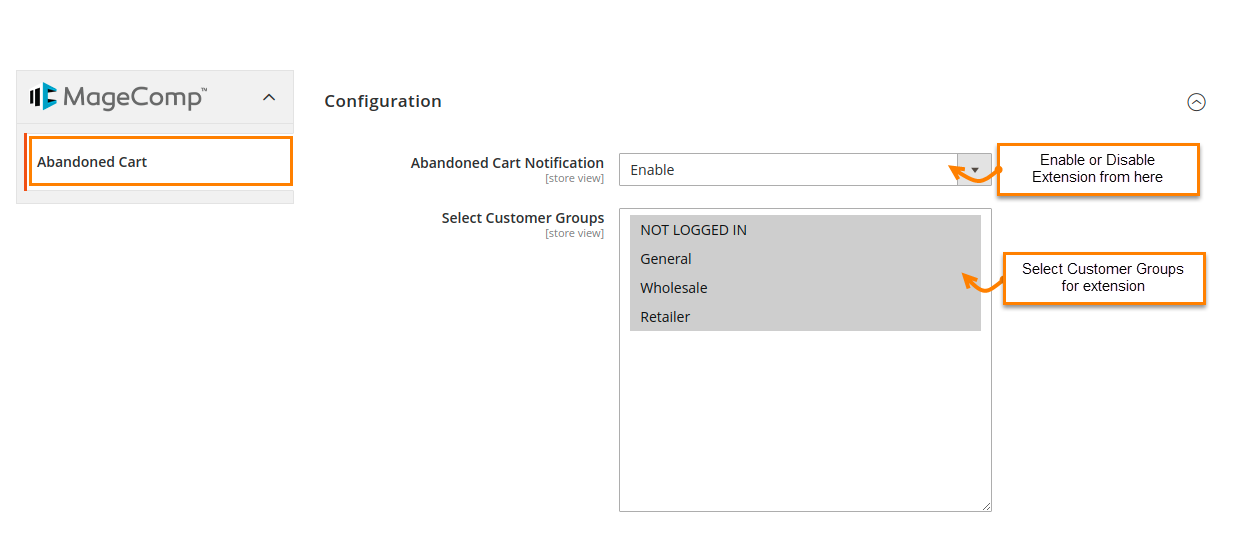
Once the extension is installed successfully, go to Stores>Configuration to configure the extension for use.
* **Abandoned Cart Notification:** Enable or Disable the extension from here. Set it as enabled to use the features of the extension.
* **Select Customers Groups:** Admin will need to select the customer groups from here.
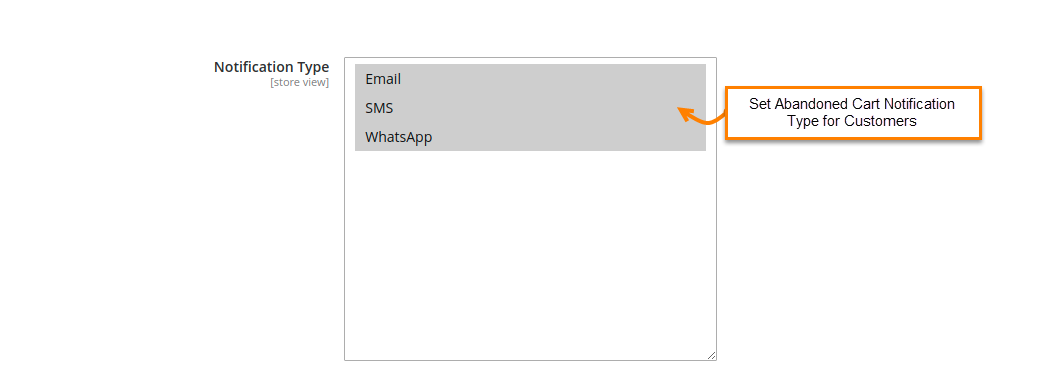
* **Notification Type:** Admin can select the type of notification as per their requirement.
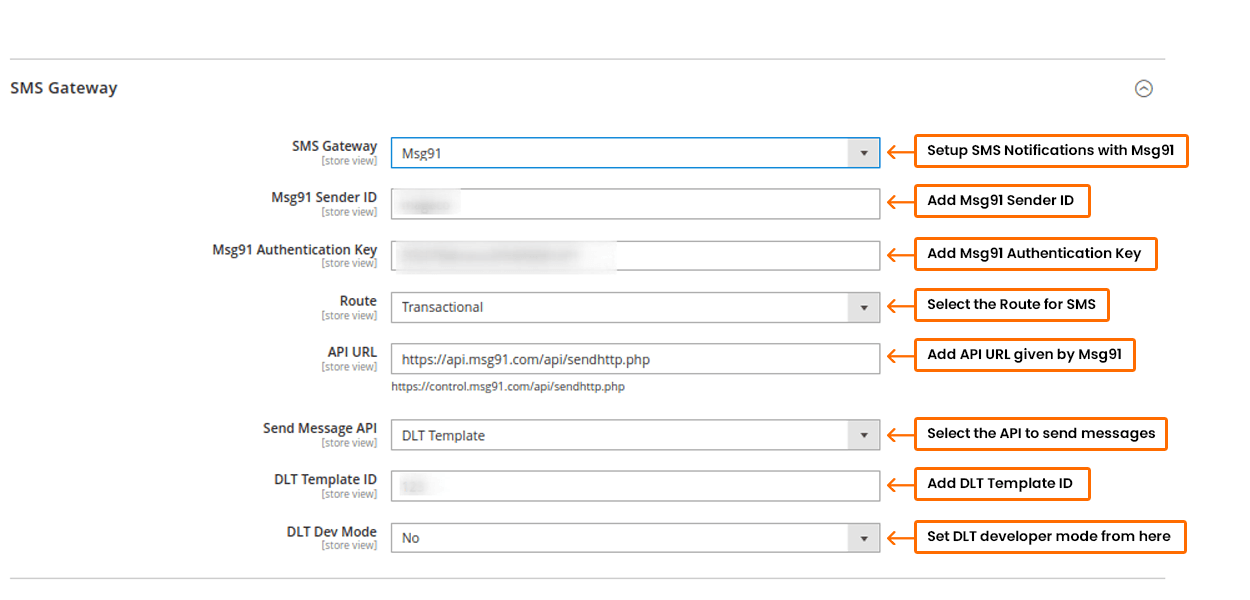
**1. SMS Gateway Configuration:**
* **SMS Gateway:** The admin will need to select the gateway type from here. Here we have selected Msg91.
* **Msg91 Sender ID:** Admin can add the sender id from here.
* **Msg91 Authentication Key:** Add the authentication key from here.
* **Route:** Select the route from here.
* **API URL:** Admin will need to add the URL provided by the SMS gateway.
* **Send Message API:** Select the message API to send messages. Here we have selected DLT Template.
* **DLT Template ID:** Add the DLT Template ID from here.
* **DLT Dev Mode:** Set the developer mode for the DLT template from here.
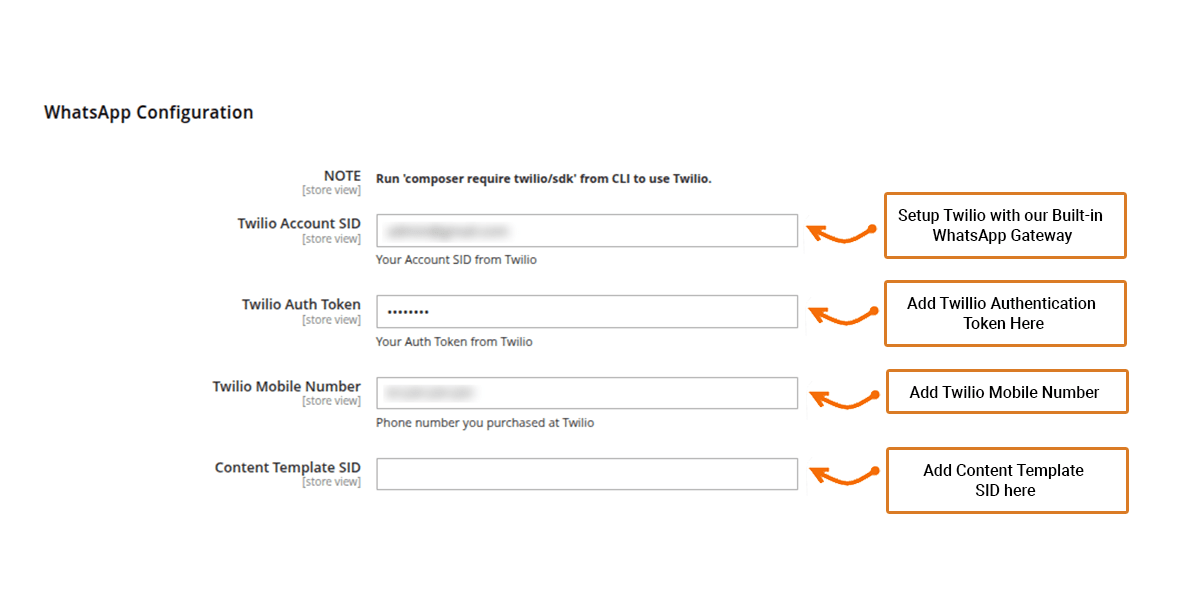
**2. WhatsApp Configuration:**
**Note: For using Twilio you will need to run the Twilio/SDK from CLI.**
* **Twilio Account SID:** Admin will need to add the Twilio account SID here.
* **Twilio Auth token:** Admin will need to add the Auth Token given by Twilio.
* **Twilio Mobile Number:** Add the phone number here which you purchased from Twilio.
* **Content Template SID:** Add the content template SID given by Twilio.
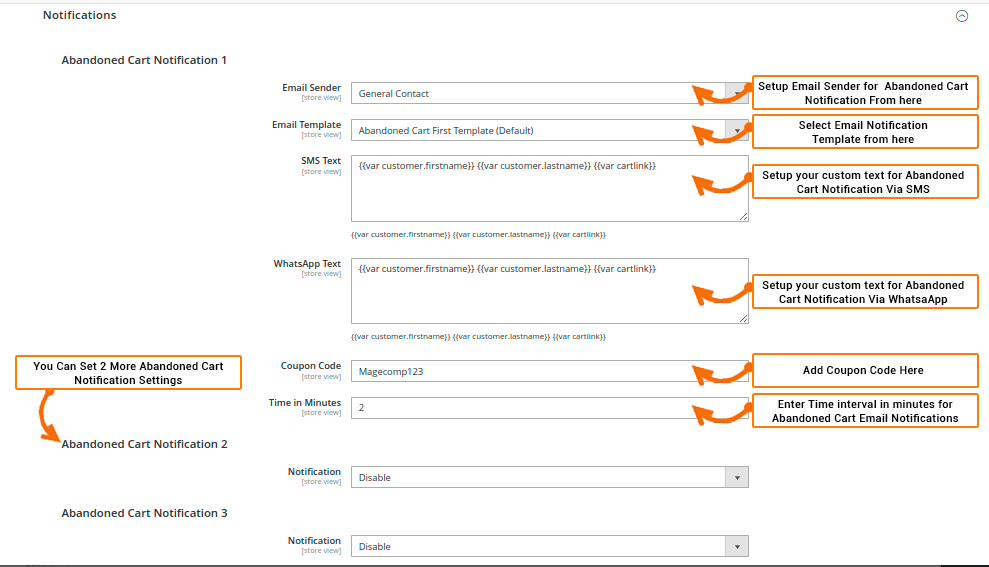
**3. Email Configuration:**
* **Email Sender:** Select the sender which will display in the sent mail to the customer.
* **Email Template:** Select the email template from here.
* **SMS Text:** Add the text as per your desire to send along with the notification via SMS.
* **WhatsApp Text:** Add the text as per your desire to send along with the notification via WhatsApp.
* **Coupon Code:** Add the discount coupon code you wish to send to your customers.
* **Time in Minutes:** Set the time in minutes for which you need to resend the notification emails to your customers.
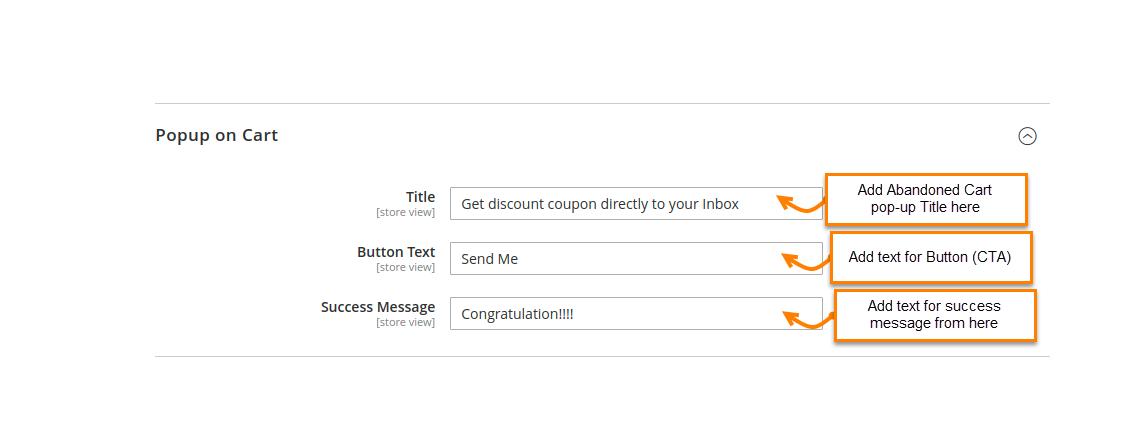
**4. Popup on Cart:**
* **Popup Title:** Add an attractive title as per your desire.
* **Popup Button Text:** Add the button text in this field.
* **Popup Success Message:** Add message which will be displayed after customer sends response.
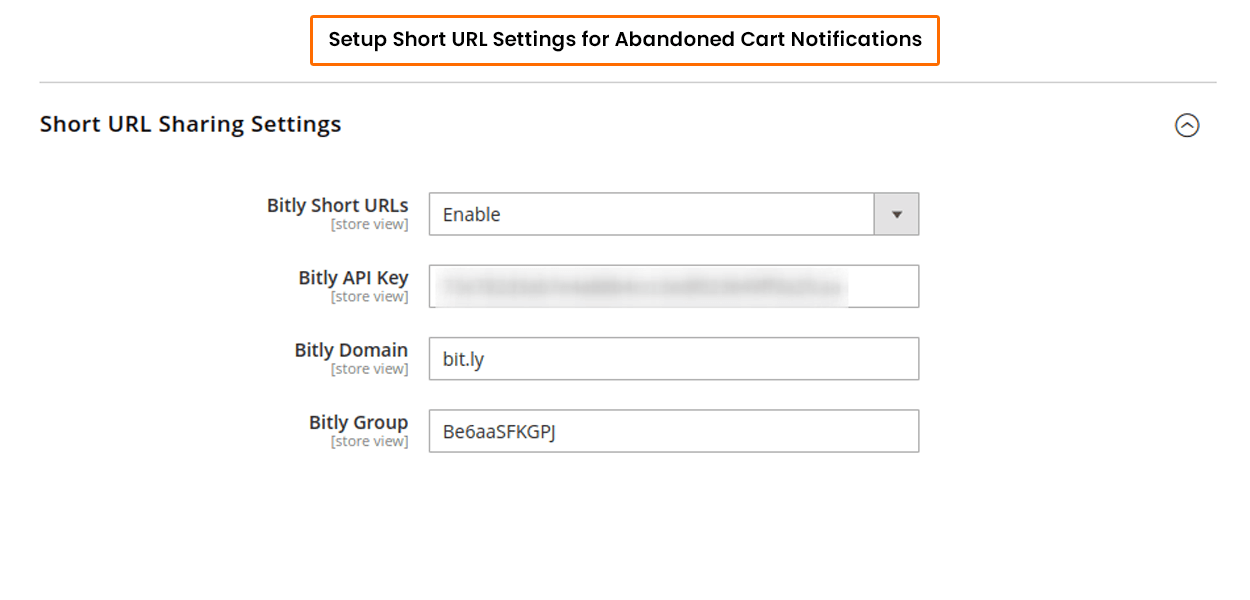
**5. Short URL Sharing Settings:**
* **Bitly Short URLs:** Admin will need to set enable from here.
* **Bitly API Key:** Add the API key here which is provided by the bitly.
* **Bitly Domain:** Add the domain for a short URL.
* **Bitly Group:** Add the group name of the short URL.
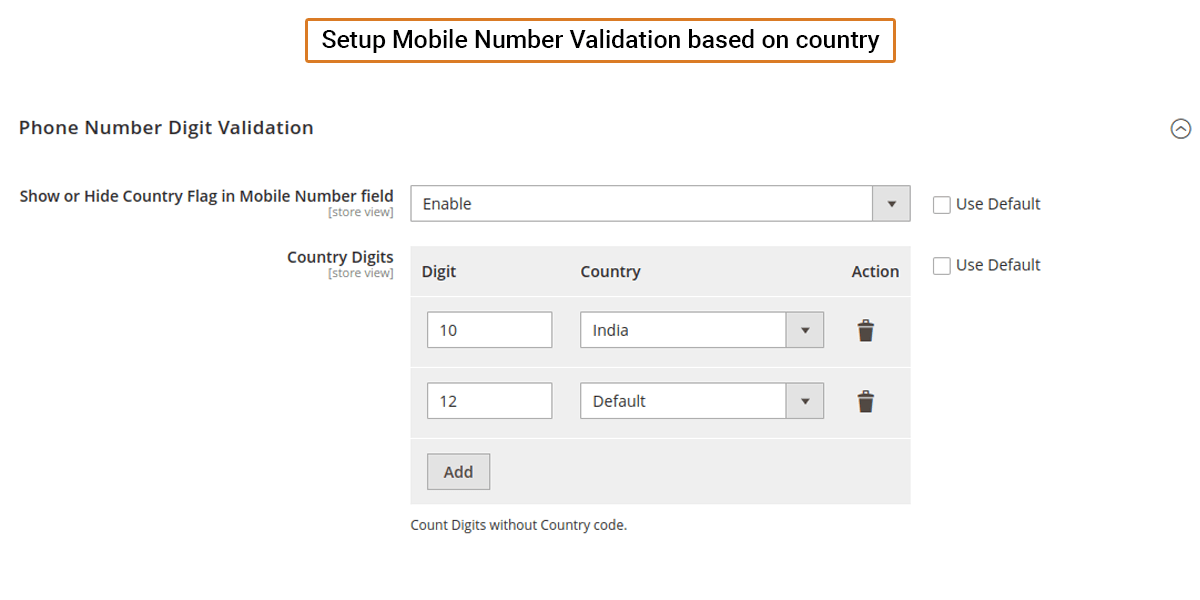
**6. Phone Number Validation Settings:**
* **Show or Hide Country Flag in Mobile Number field:** Enable it to show the country flag in the discount coupon popup.
* **Country Digits:** Add digits and country to validate the phone number.